Exercise 1: Import & Plot Vector Data
Spatial Data Fundamentals in R
Summary
In this exercise we will import some layers for Yosemite National Park from local and online sources, do some cleaning and filtering, and plot them.
Setup
View Available Layers for Yosemite National Park
First let’s look at layers in the ./exercises/data folder, by passing the directory to sf::st_layers(). This will show us the Shapefiles but not layers that are in ‘containers’, like file geodatabases, geojson files, etc.
Import a Shapefile
Import the ‘yose_boundary’ layer (a Shapefile).
Note: if we use the layer argument we don’t need to include the .shp extension.
Reading layer `yose_boundary' from data source
  `D:\Workshops\R-Spatial2\SpatialDataFundamentals_2hr\SpatialDataR\exercises\data'
  using driver `ESRI Shapefile'
Simple feature collection with 1 feature and 11 fields
Geometry type: POLYGON
Dimension:     XY
Bounding box:  xmin: -119.8864 ymin: 37.4947 xmax: -119.1964 ymax: 38.18515
Geodetic CRS: North_American_Datum_1983The naming convention throughout this exercise is to name objects using a sequence of tags separated by ’_’.
For example, yose_bnd_ll consists of:
yose - all Yosemite layers start with thisbnd - tell me this the park boundaryll - lat-long coordinates
View the class of yose_bnd_ll:
## View the class of the object we just created
class(yose_bnd_ll)
[1] "sf" "data.frame"We see that yose_bnd_ll is both a sf object (simple feature data frame) as well as a data.frame. This means we should be able to use the functions designed for either of those objects.
Next, view the properties of yose_bnd_ll by simply running it by itself:
yose_bnd_llSimple feature collection with 1 feature and 11 fields
Geometry type: POLYGON
Dimension: XY
Bounding box: xmin: -119.8864 ymin: 37.4947 xmax: -119.1964 ymax: 38.18515
Geodetic CRS: North_American_Datum_1983
UNIT_CODE
1 YOSE
GIS_NOTES
1 Lands - http://landsnet.nps.gov/tractsnet/documents/YOSE/METADATA/yose_metadata.xml
UNIT_NAME DATE_EDIT STATE REGION GNIS_ID UNIT_TYPE
1 Yosemite National Park 2016-01-27 CA PW 255923 National Park
CREATED_BY METADATA PARKNAME
1 Lands http://nrdata.nps.gov/programs/Lands/YOSE_METADATA.xml Yosemite
geometry
1 POLYGON ((-119.8456 37.8327...Plot the Yosemite Boundary
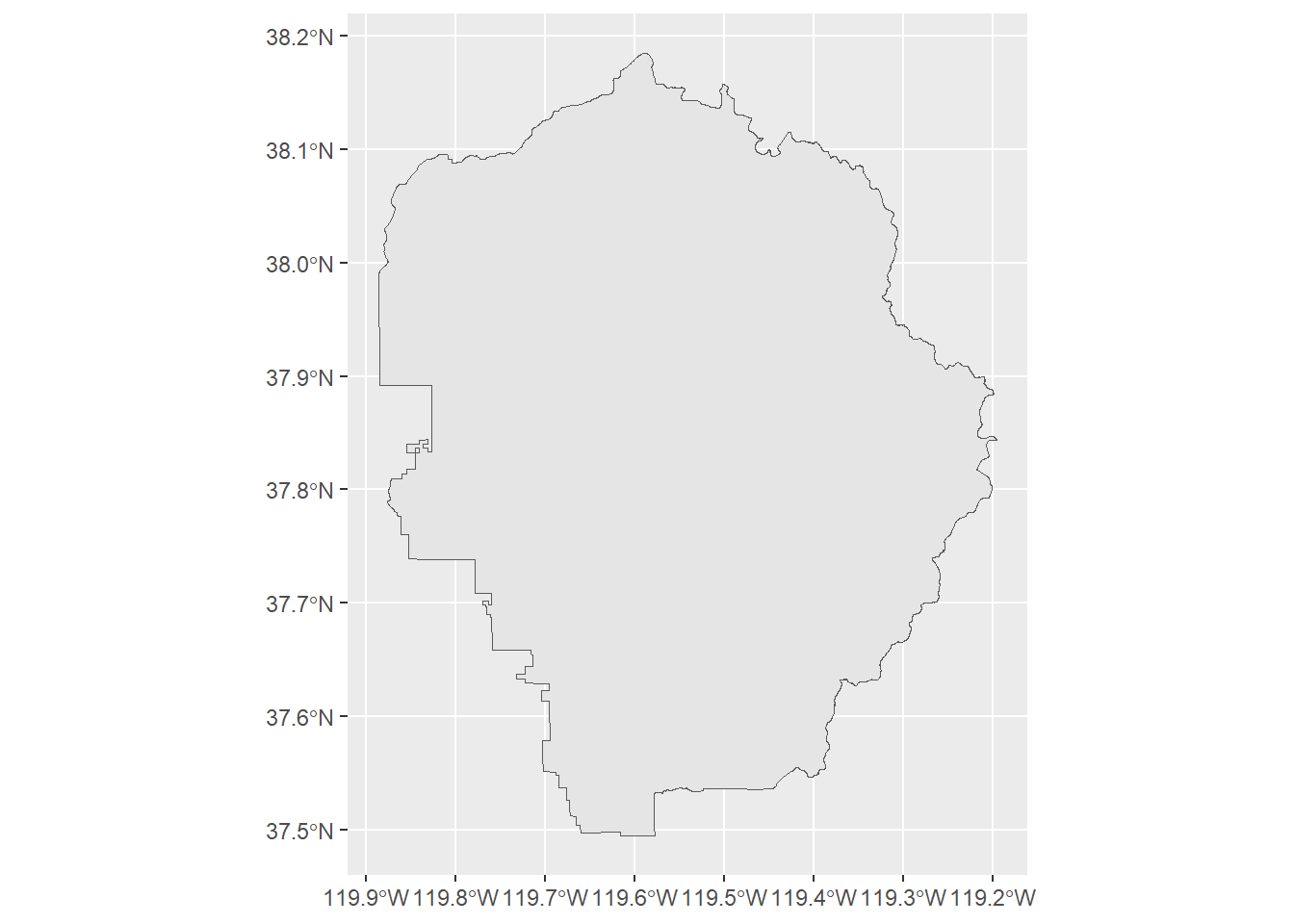
CHALLENGE
Import the Historic Points Shapefile and plot it.
## Your answer hereImport the Yosemite Points-of-Interest (POI)
Next, import the points-of-interest Shapefile, and overlay it on top of the park boundary.
## Import the yose_poi.shp
yose_poi_ll <- st_read(dsn="./data", layer="yose_poi")
Reading layer `yose_poi' from data source
`D:\Workshops\R-Spatial2\SpatialDataFundamentals_2hr\SpatialDataR\exercises\data'
using driver `ESRI Shapefile'
Simple feature collection with 2720 features and 30 fields
Geometry type: POINT
Dimension: XY
Bounding box: xmin: 246416.2 ymin: 4153717 xmax: 301510.7 ymax: 4208419
Projected CRS: NAD83 / UTM zone 11Nhead(yose_poi_ll)ggplot() +
geom_sf(data = yose_poi_ll) +
geom_sf(data = yose_bnd_ll, fill = NA, color = "darkgreen", size = 1) +
labs(title = "Yosemite National Park Points of Interest") 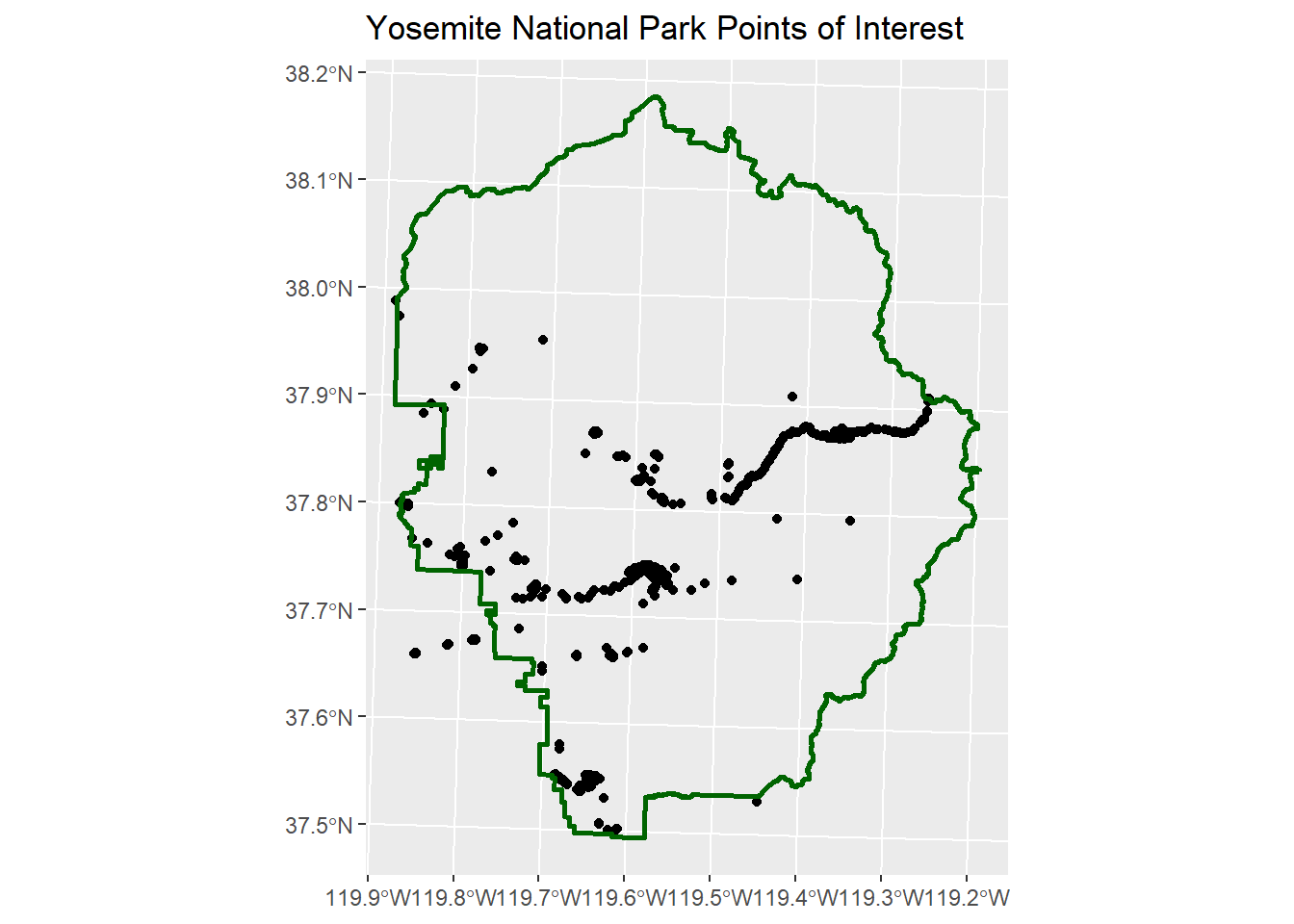
Subset the Points of Interest
Because sf objects are just data frames, we can use standard data frame functions to explore and manipulate them.
For example to tabulate the unique values in the POITYPE column:
table(yose_poi_ll$POITYPE)
    Backcountry Campsite               Campground         Campground Kiosk
                       9                       15                       10
                Campsite                   Church         Entrance Station
                    1219                        1                        9
            Food Service              Gas Station                 Hospital
                      11                        4                        1
                 Lodging                   Market                   Museum
                     789                        5                        3
                   Other              Parking Lot              Picnic Area
                      41                      259                       18
             Post Office Private Residence Rental          Public Restroom
                       3                      122                       31
                Restroom                   Stable                    Store
                      97                        1                        2
               Trailhead           Visitor Center
                      65                        5
We can use this field to plot just the parking lots:
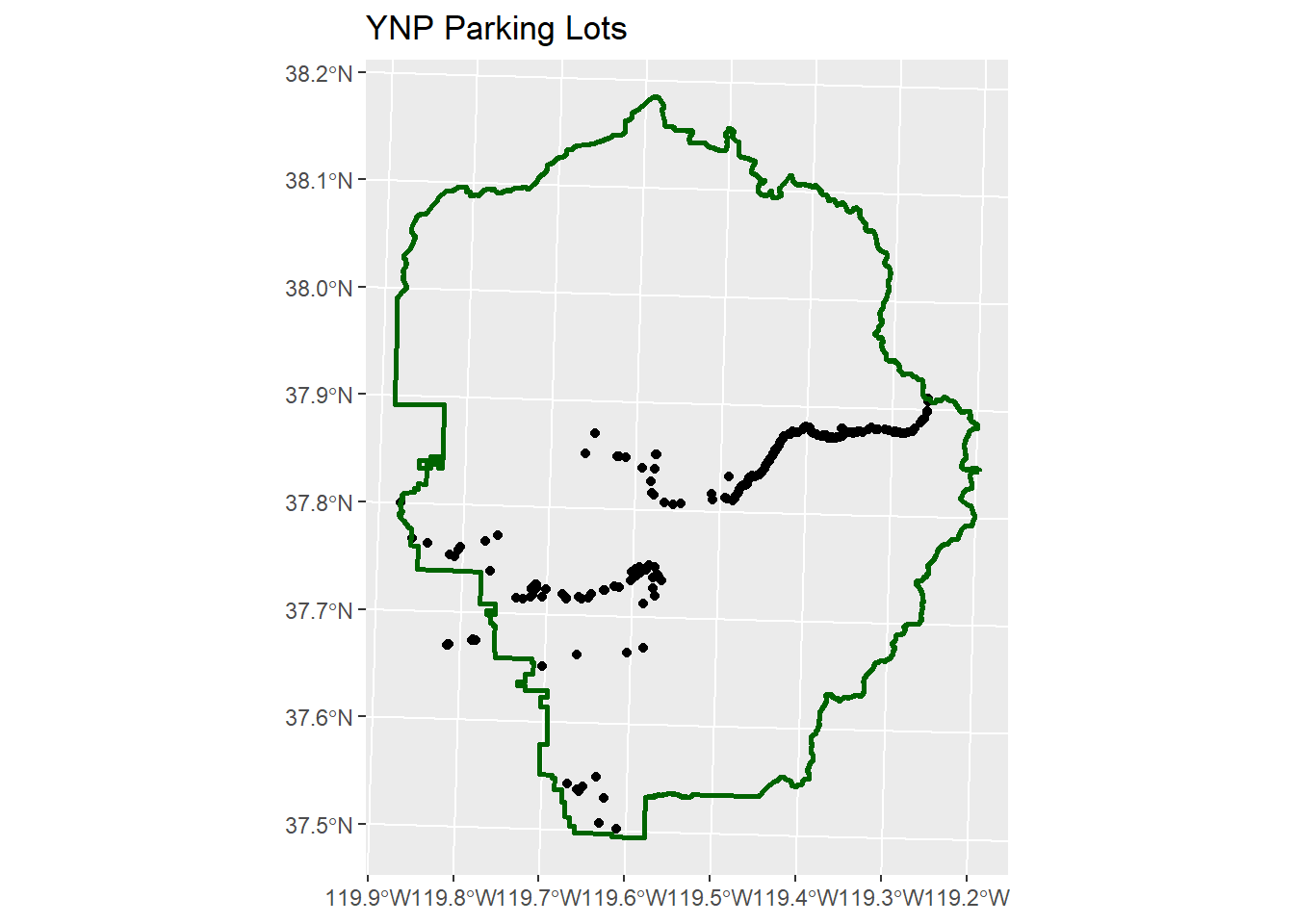
Import Roads from a Geodatabase
You can import layers from an ESRI file geodatabase using the sf package. In this case, the source is the folder containing the geodatabase.
Import the Yosemite’s roads from a geodatabase. First find the gdb directory:
gdb_fn <- here::here("./exercises/data/yose_roads.gdb")
file.exists(gdb_fn)
[1] TRUEView the layers in this source:
st_layers(gdb_fn)Driver: OpenFileGDB
Available layers:
layer_name geometry_type features fields crs_name
1 Yosemite_Roads Multi Line String 823 40 NAD83 / UTM zone 11NImport the Yosemite_Roads layer:
## Import the 'Yosemite_Roads' layer  (case sensitive!)
yose_roads_utm11n <- st_read(gdb_fn, layer="Yosemite_Roads")
Reading layer `Yosemite_Roads' from data source
`D:\Workshops\R-Spatial2\SpatialDataFundamentals_2hr\SpatialDataR\exercises\data\yose_roads.gdb'
using driver `OpenFileGDB'
Simple feature collection with 823 features and 40 fields
Geometry type: MULTILINESTRING
Dimension: XY
Bounding box: xmin: 234658.1 ymin: 4139484 xmax: 324852.6 ymax: 4250252
Projected CRS: NAD83 / UTM zone 11N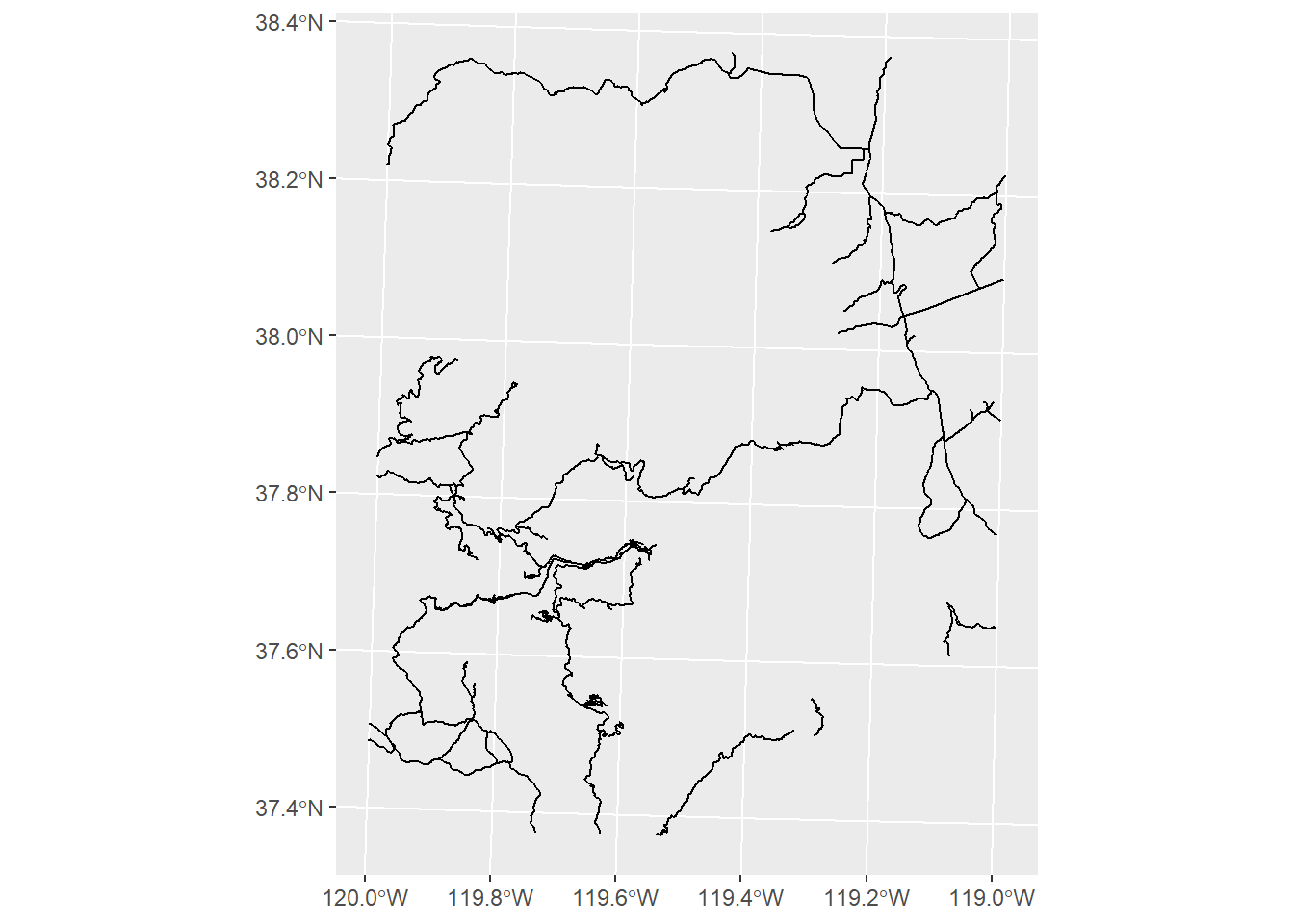
As can be seen above, geom_sf() will display geographic coordinates on the axes, even if the data are projected.
To change the CRS for the coordinates on the axes, add coord_sf() and pass a CRS object for the datum argument.
CHALLENGE
Plot just the primary roads.
## Your answer hereExtract the roads that fall within the park
To plot just the roads in the park, we can do an intersection.
Note however intersections require the layers to be in the same CRS. Here we can project the park boundary to match the roads.
yose_bnd_utm11n <- yose_bnd_ll |>
  st_transform(st_crs(yose_roads_utm11n))

yose_roads_park_utm11n <- yose_roads_utm11n |>
  st_intersection(yose_bnd_utm11n)
Warning: attribute variables are assumed to be spatially constant throughout
all geometriesdim(yose_roads_utm11n)[1] 823 41dim(yose_roads_park_utm11n)[1] 638 52ggplot() +
geom_sf(data = yose_roads_park_utm11n, color = "darkgray") +
geom_sf(data = yose_bnd_ll, fill = NA, color = "darkgreen", size = 1) +
labs(title = "YNP Park Roads") 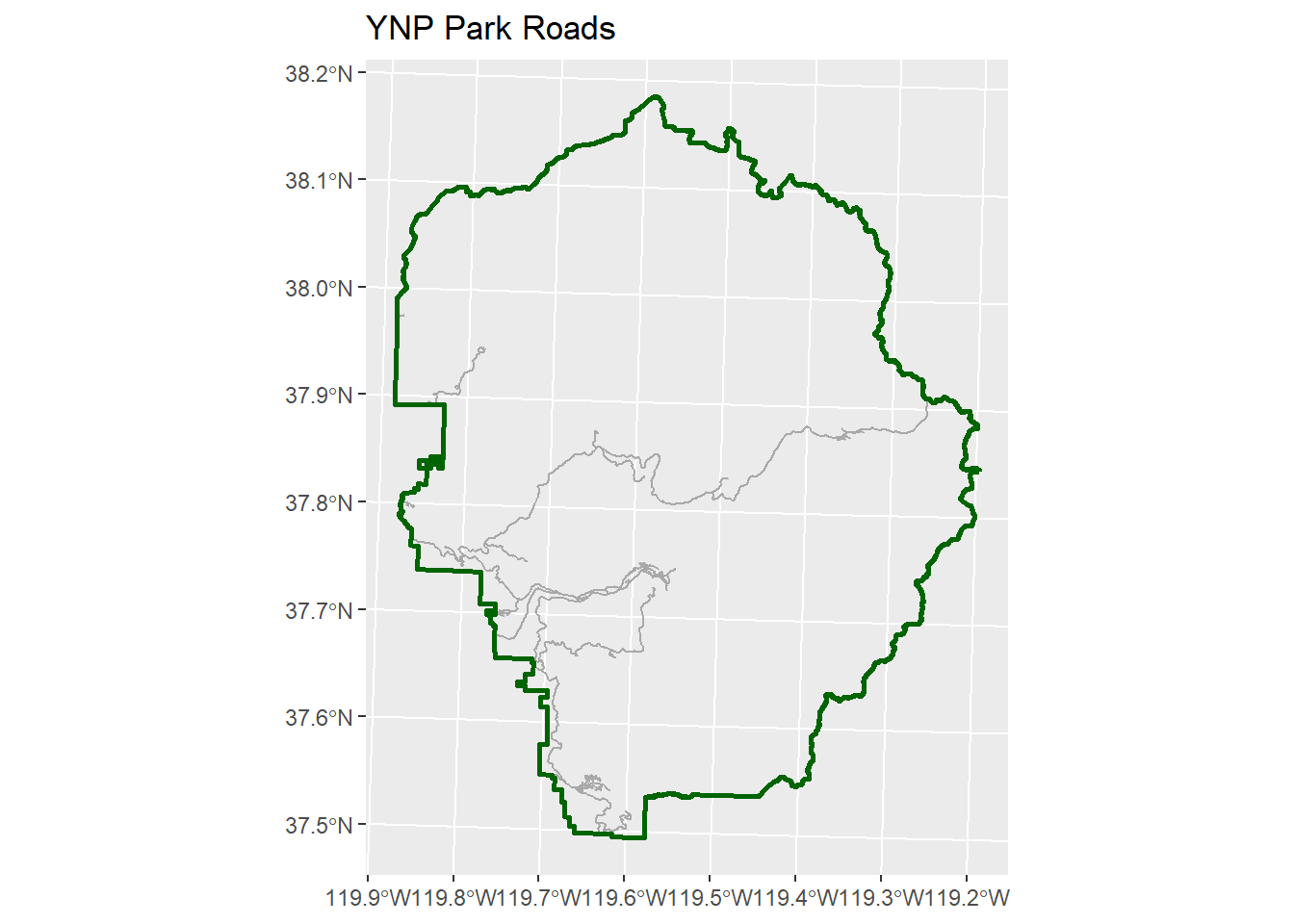
Import Watersheds from ArcGIS Online
Let’s import the watersheds. These are available from the California State Water Resources Control Board (SWRCB) which shares the Feature Service through their ArcGIS Enterprise portal:
https://gispublic.waterboards.ca.gov/portal/home/item.html?id=816893ddab33434989eda92dbc0e126f
Step 1 is to find the URL for the FeatureServer (on the website).
Then we can import it using arcgislayers.
library(arcgislayers)

## URL for a publicly available Feature Server
pws_featsrv_url <- "https://gispublic.waterboards.ca.gov/portalserver/rest/services/Hosted/CalWater/FeatureServer"

## Create a FeatureServer object
pws_featsrv_fs <- arc_open(pws_featsrv_url)
pws_featsrv_fs
<FeatureServer <6 layers, 0 tables>>
CRS: 3857
Capabilities: Query,Sync,Extract
0: CalWater_Hydrologic_Region (esriGeometryPolygon)
1: CalWater_Hydrologic_Unit (esriGeometryPolygon)
2: CalWater_Hydrologic_Subarea (esriGeometryPolygon)
3: CalWater_Hydrologic_Area (esriGeometryPolygon)
4: CalWater_Hydrologic_SPW (esriGeometryPolygon)
5: CalWater_Hydrologic_PW (esriGeometryPolygon)## List the layers available
arcgislayers::list_items(pws_featsrv_fs)## Create a FeatureLayer object
pws_featsrv_fl <- arcgislayers::get_layer(pws_featsrv_fs, id = 5)
pws_featsrv_fl<FeatureLayer>
Name: CalWater_Hydrologic_PW
Geometry Type: esriGeometryPolygon
CRS: 3857
Capabilities: Query,Sync,Extract## If you want you can view the fields
# list_fields(pws_featsrv_fl)
## Download the polygons and plot
## THIS MAY OVERWHELM POSIT CLOUD SO HAS BEEN COMMENTED OUT.
# pws_ca_sf <- arc_select(pws_featsrv_fl)
# dim(pws_ca_sf)
# ggplot() + geom_sf(data = pws_ca_sf)
## Alternative: display a saved version
knitr::include_graphics(here("./exercises/images/ca_planning_watersheds.png"))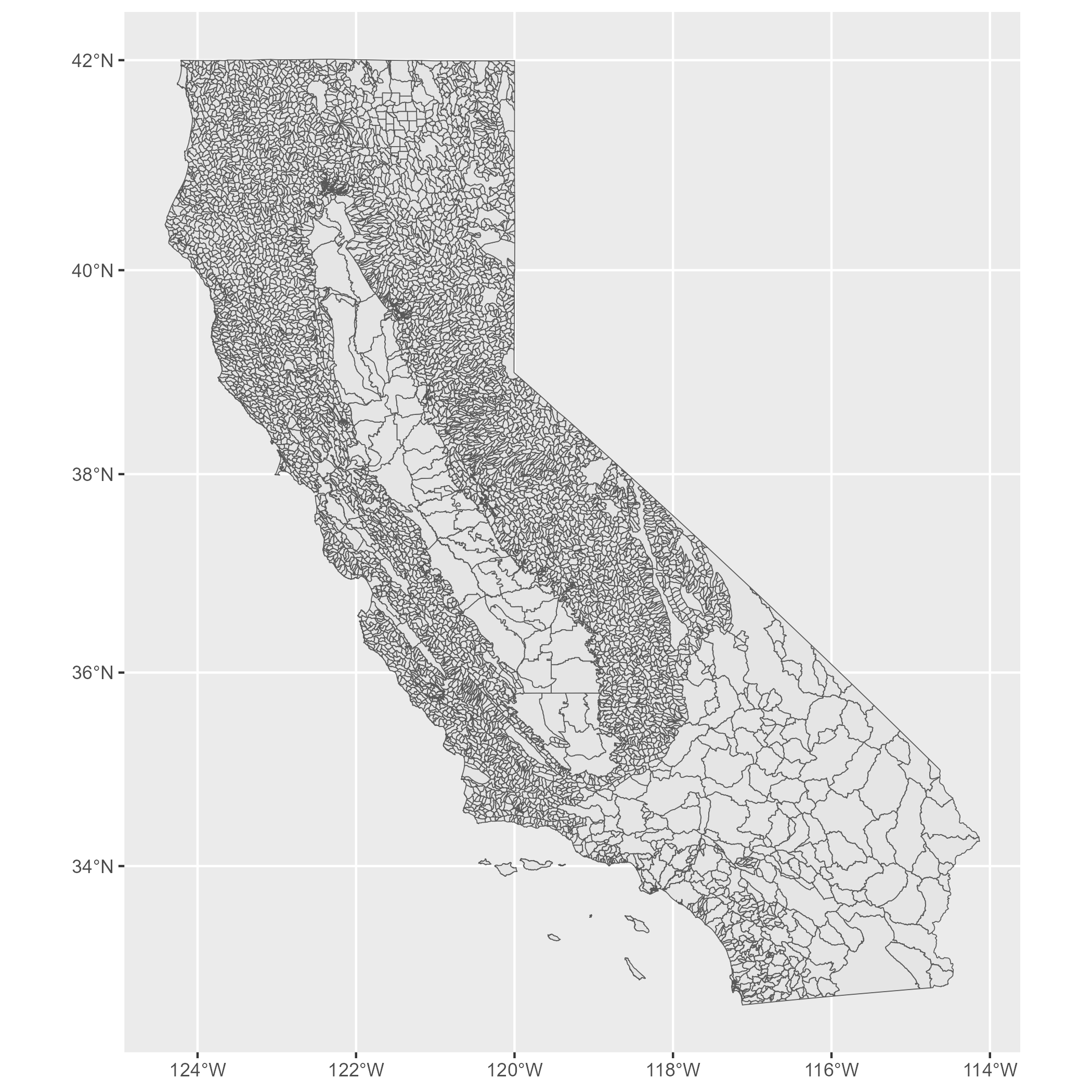
Import with a Spatial Filter
Fortunately for us, arc_select() supports two ways to filter the data on the server.
where: pass a ‘WHERE’ expression for an attribute filterfilter_geom: pass a bounding box for a spatial filter
Here we’ll apply a spatial filter to get only the planning watersheds for Yosemite.
pws_yose_sf <- arc_select(pws_featsrv_fl,
                          filter_geom = st_bbox(yose_bnd_ll))
Registered S3 method overwritten by 'jsonify':
method from
print.json jsonlitenrow(pws_yose_sf)[1] 175ggplot() +
geom_sf(data = pws_yose_sf) +
geom_sf(data = yose_bnd_ll, size = 2, fill = NA, color = "navy") 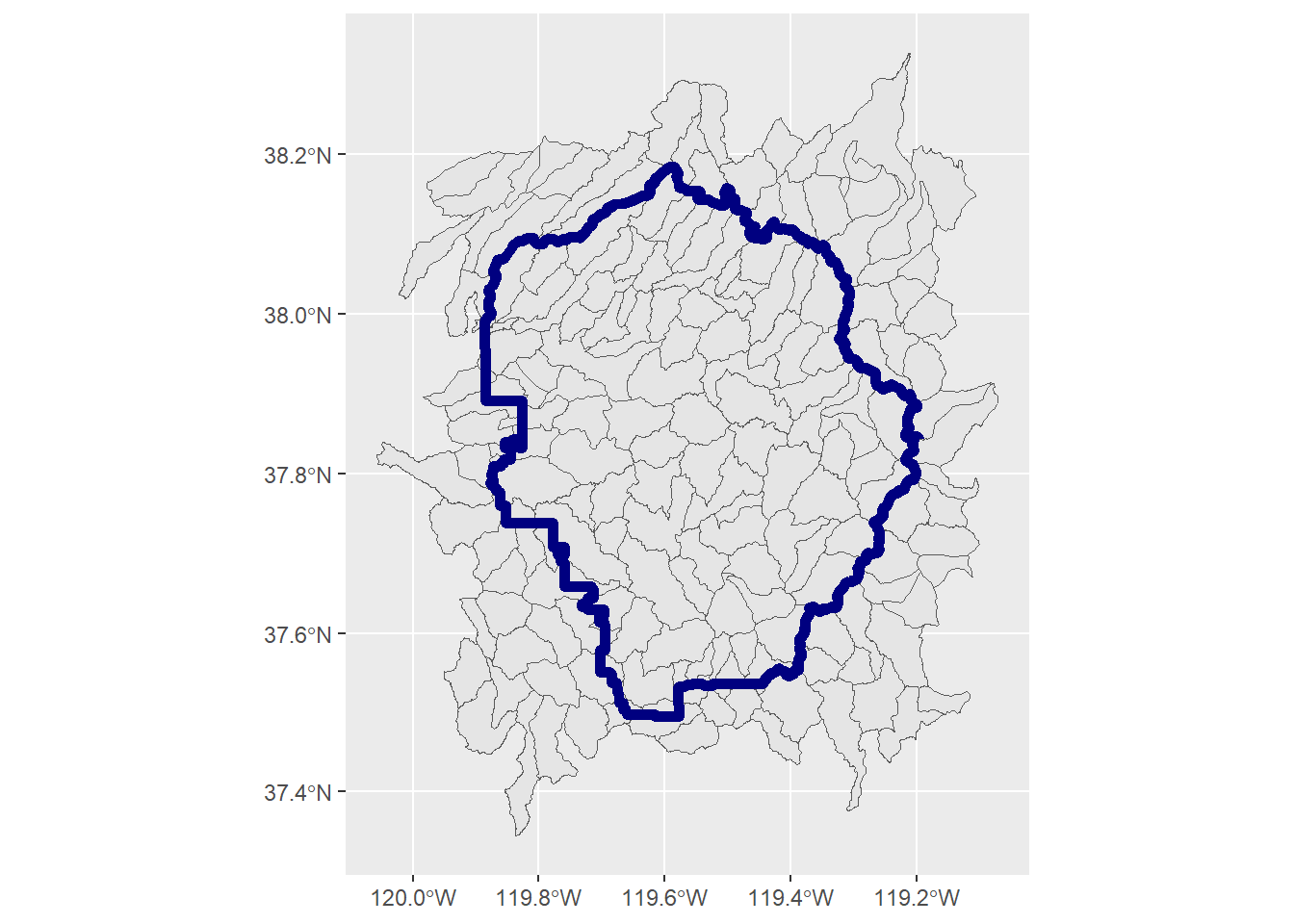
CHALLENGE
Import another layer and overlay it.
You can either select another layer from the ‘data’ folder, or import one from the YNP Minimum Essential Dataset (MED) feature layer (search & rescue):
Base Data - Yosemite National Park MED
https://www.arcgis.com/home/item.html?id=0c1bebf618d0425ba3181a5b0fcac821
## Your answer here