Intro to Spatial Data
Analysis with R
SCGIS 2023
Annual Conference
Getting Started with R & RStudio

R and RStudio
Why is R So Popular?
- It’s free!
- Huge user community (especially academics)
- Thousands of add-ons (packages) that extend its capabilities
- Particularly strong in plotting and reporting
- Strong on spatial data
- Once you get over the initial hump, can work very efficiently
- Makes it easy to get your code “out there”
- Solid overall programming language

- a programming language to write scripts
- software (“environment”) that interprets scripts written in R
- inspired by ‘S’ (1976), first beta version ~2000
- lots of
user-contributed packages:
- CRAN: >24,500
- Bioconductor: >2,100
- R-Forge: >2,200
- GitHub: >85,500

- a very popular tool (IDE) to work with both R software and R
scripts
- Version 1.0 came out in late 2016
- has lots of convenience functions
- RStudio needs R to run, but you can use R without RStudio

- formerly known as RStudio Cloud
- online RStudio and Jupyter Notebooks
- requires an account (free account gets you 25 hrs / month)
- 98% same as RStudio Desktop
- have to upload your data to the cloud
- everything gets saved between sessions
- workspaces and projects can be shared with collaborators
Exercise 1: RStudio Exploration and Basic Commands
Exercise 1 Topics
- Using R like a fancy calculator
- Order of operations
- Comparison operators
- Saving the results of expressions to variable
- Rules for naming variables
RStudio Cloud project for this workshop:
https://posit.cloud/content/6309720
After it opens, click on ‘Save a Permanent Copy’:

Break!
Exercise 1 Review
Key vocabulary terms are in italic.
When you enter an expression at the console, R
will evaluate the expression, and print the results at
the console.
If you enter an incomplete expression, R will prompt you
to finish the job by showing a ‘+’ symbol in the console
You can save the results of an expression to an
object (variable) using an assignment operator
=
<-
R objects can be named almost anything (but no spaces or
hyphens please)
R is case sensitive about
everything
Once defined, R objects can be used in subsequent
expressions
R objects can be updated (assigned a new value)
R objects are only saved in memory, and will disappear
when you close RStudio
Comparison operators return TRUE or FALSE (aka Logical
values)
- R has a few built-in constants, which are like objects but
you don’t have to define them
Naming Objects
The rules for naming objects are pretty flexible. You can use
numbers, letters, and most special characters.
A few rules to take note of:
- Can’t start with a number: 3pieces
- Hyphens and spaces not allowed: first name,
last-name
- Don’t use the name of a built-in function, constant, or keyword:
c, pi
Naming Styles
There are a handful of popular naming styles. Pick one that you like, and be
consistent!
|
Style
|
Example
|
|
alllowercase
|
adjustcolor
|
|
period.separated
|
shoe.size
|
|
underscore_separated (aka snake case)
|
numeric_version
|
|
lowerCamelCase
|
addTaskCallback
|
|
UpperCamelCase
|
SignatureMethod
|
Data Types
All variables have a class or data type, which you can view using
class().
num_plots = 10
class(num_plots)
## [1] "numeric"
Other common data types:
- character
- factor
- date
- data frame, tibble
- matrix
- list
Vectors
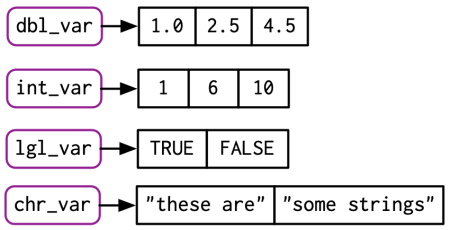
vectors are R objects that contain multiple
values of the same class.
Example:
## [1] 4 5 6 7 8 9 10 11 12
More examples:
Creating Vectors
In general, you need to use a function or
operator to create a vector.
Sequence of numbers with the : operator:
## [1] 1 2 3 4 5 6 7 8 9 10
Repeat function:
## [1] "Quercus lobata" "Quercus lobata" "Quercus lobata" "Quercus lobata" "Quercus lobata"
Combine elements of the same class with c():
yn <- c(TRUE, FALSE, TRUE)
yn
## [1] TRUE FALSE TRUE
Some built-in constants are also vectors:
## [1] "A" "B" "C" "D" "E" "F" "G" "H" "I" "J" "K" "L" "M" "N" "O" "P" "Q" "R" "S" "T" "U" "V" "W" "X" "Y" "Z"
##  [1] "AL" "AK" "AZ" "AR" "CA" "CO" "CT" "DE" "FL" "GA" "HI" "ID" "IL" "IN" "IA" "KS" "KY" "LA" "ME" "MD" "MA" "MI" "MN" "MS" "MO" "MT"
## [27] "NE" "NV" "NH" "NJ" "NM" "NY" "NC" "ND" "OH" "OK" "OR" "PA" "RI" "SC" "SD" "TN" "TX" "UT" "VT" "VA" "WA" "WV" "WI" "WY"
##  [1] "January"   "February"  "March"     "April"     "May"       "June"      "July"      "August"    "September" "October"   "November"
## [12] "December"
Random number functions:
##  [1] 0.47222650 0.32177990 0.47102296 0.31255999 0.37411543 0.83883019 0.54412414 0.79563818 0.86056624 0.37776087 0.13241074 0.04561497
## [13] 0.12573181 0.35008028 0.10085344 0.24164384 0.88692435 0.58348380 0.40103117 0.05853828
##  [1]  0.17259189  1.05045045 -0.77576319  0.38853854  1.21766611 -0.44178341 -0.49117499  0.45152488 -1.00500504 -0.28446580 -0.47148116
## [12]  0.67110532  1.10437365 -0.08966662 -0.32382897 -0.35828034  1.35148125  0.70476880 -0.31489782 -0.85387276
## [1] "Jan" "May" "Jun"
How Vectors Behave
Vectorized operations
Many R functions and math operators are vectorized
(i.e., operate on each individual element).
Examples
First we create two numeric vectors:
## [1] 0 1 2 3 4
## [1] 11 12 13 14 15
Are sin() & cos() vectorized?
## [1] 0.0000000 0.8414710 0.9092974 0.1411200 -0.7568025
## [1] 1.0000000 0.5403023 -0.4161468 -0.9899925 -0.6536436
Addition (and all math functions) is vectorized:
## [1] 1 2 3 4 5
## [1] 11 13 15 17 19
Aggregate functions
Functions that accept a vector and spit out a single value are
aggregate.
##  [1] 0.19164316 0.14713477 0.52358202 0.36361698 0.66091639 0.89028906 0.50335611 0.02837383 0.27831807 0.04872274 0.90151351 0.47016136
## [13] 0.87231665 0.52445658 0.30225813 0.67669765 0.39608536 0.06927169 0.64936000 0.45437898
Most descriptive stats functions are aggregate:
## [1] 0.4476227
## [1] 0.4622702
## [1] 0.2743128
Other aggregate functions:
Subsetting Vectors
To extract a single element from a vector, use square bracket
notation. Inside the square brackets, put the index of the element(s)
you want.
Subset with indices

To return multiple elements, pass a vector of indices.
You can also use square brackets to extract elements in a different
order.
Subset with logicals
You can also insert a vector of Logical values (TRUE/FALSE) in the
brackets. R will return the corresponding element for the TRUE
values.
LETTERS[c(T,T,T,T,T,T,T,T,F,F,F,F,F,F,F,F,F,F,F,F,F,F,F,F,F,F)]
## [1] "A" "B" "C" "D" "E" "F" "G" "H"
Better still, use an expression that returns a vector of logical
values:
state.abb[ substr(state.abb, 1, 1) == "N" ]
## [1] "NE" "NV" "NH" "NJ" "NM" "NY" "NC" "ND"
Exercise 2: Working with Scripts and Vectors
Exercise 2 Topics
- Saving code in scripts
- Data types
- Vectors
Exercise 2 Review
vectors are R objects that contain multiple values of
the same class
Some functions that return
vectors:
c()
seq()
rnorm()
sample()
You can build vectors from scratch using:
c()
Functions and operators that operate on each element of a vector
and return another vector are said to be
vectorized
round(), abs()
+ - *
/
Functions that take multiple elements of a vector and spit out a
single value are said to be aggregate
functions
sum(), min(), mean(), max()
You can plot the distribution of numeric data using
plotting functions like:
hist(), boxplot(),
plot()
Scripts
Top five advantages of using scripts over the console:
-
Easier to write (and fix!) your code
-
You can add comments to remind yourself what each command is doing
-
Reuse your own code
-
You can add loops and if-then statements later on
-
Tell your friends you’re a
coder!