Spatial Data Fundamentals in R
November
7, 2025
Andy Lyons
https://ucanr-igis.github.io/SpatialDataR/

November
7, 2025
Andy Lyons
https://ucanr-igis.github.io/SpatialDataR/

Compute degree days in R.
https://ucanr-igis.github.io/degday/
Data management utilities for drone mapping.
https://ucanr-igis.github.io/uasimg/

Import climate data from Cal-Adapt using the API.
https://ucanr-igis.github.io/caladaptr/
Homerange construction and spatial-temporal analysis for wildlife tracking data.
http://tlocoh.r-forge.r-project.org/
Precision Irrigation Calculator
https://ucanr-igis.shinyapps.io/irrigation-calc/
Tree Chill Calculator for Cherry
https://ucanr-igis.shinyapps.io/cherrychill/
Navel Orangeworm IPM Economics Calculator
https://ucanr-igis.shinyapps.io/now_ipm_econ/
Pistachio Nut Growth Calculator
https://ucanr-igis.shinyapps.io/pist_gdd/
Chill Portions Under Climate Change Calculator
https://ucanr-igis.shinyapps.io/chill/
Drone Mission Planner for Reforestation
Monitoring
https://ucanr-igis.shinyapps.io/uav_stocking_survey/
Stock Pond Volume Calculator
https://ucanr-igis.shinyapps.io/PondCalc/
1. Gain a better understanding of the fundamentals of working with spatial data in R.
2. Be able to find the packages and functions you need.
3. Grow your library of code recipes.
Keep your exercises!
4. Come out slightly higher on the learning curve.

This is not the end!
proficiency ~ familiarization + practice

Geocomputation with R
https://r.geocompx.org/





books, blog posts, videos,
online courses, tutorials,
forums

R as a replacement for (some) GIS tasks
especially where data is concerned
Automating
workflows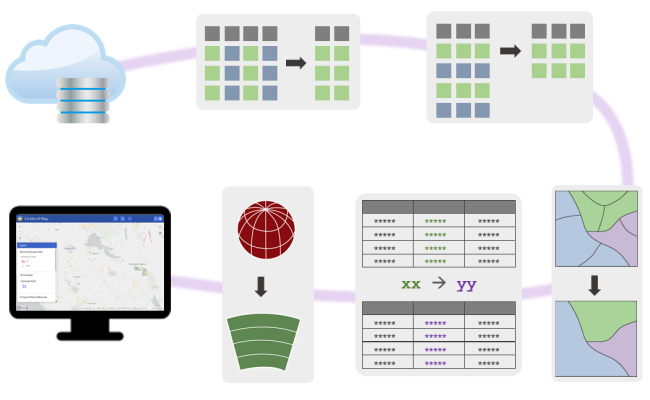
Preparing
Reference GIS Layers for a Web Map with R
R for Spatial Analysis
example: Forest Tools
Accessing resources with R
API clients
often come out fast and first in Open Source
R as a command and control
center
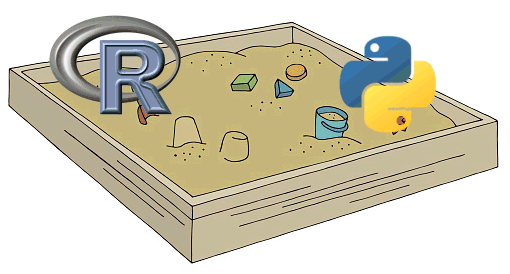
R and Python play very well together.
sf
sf is a popular package for working
with vector geospatial data
sf stands for ‘simple feature’, which is a standard
(developed by the Open Geospatial Consortium) for storing various
geometry types in a hierarchical data model.
A ‘feature’ is just a representation of a thing in the real world (e.g. a building, a city, ).
Package features:
Simple features is an ISO
standard for storing and accessing spatial data. It is widely
adopted in spatial databases, open source formats like GeoJSON, GIS
software, tools, etc.
Supports all standard geometry types:
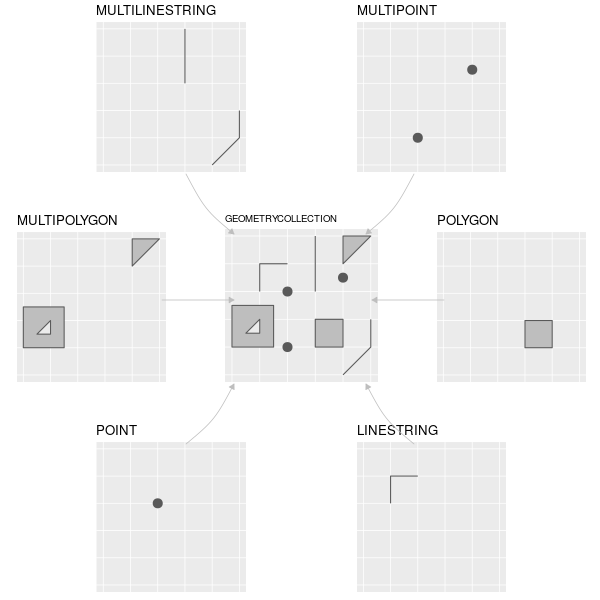
The geometry is encoded in a column using a standard called “Well Known Text” (WKT).
| point | POINT (2 4) |
| multipoint | MULTIPOINT (2 2, 3 3, 3 2) |
| linestring | LINESTRING (0 3, 1 4, 2 3) |
| polygon | POLYGON ((1 0, 3 4, 5 1, 1 0)) |
sf object = date frame + 'geometry' column (WKT) + spatial metadata
## [1] "sf" "data.frame"## Simple feature collection with 6 features and 14 fields
## Geometry type: MULTIPOLYGON
## Dimension: XY
## Bounding box: xmin: -81.74107 ymin: 36.07282 xmax: -75.77316 ymax: 36.58965
## Geodetic CRS: NAD27
## AREA PERIMETER CNTY_ CNTY_ID NAME FIPS FIPSNO CRESS_ID BIR74 SID74
## 1 0.114 1.442 1825 1825 Ashe 37009 37009 5 1091 1
## 2 0.061 1.231 1827 1827 Alleghany 37005 37005 3 487 0
## 3 0.143 1.630 1828 1828 Surry 37171 37171 86 3188 5
## 4 0.070 2.968 1831 1831 Currituck 37053 37053 27 508 1
## 5 0.153 2.206 1832 1832 Northampton 37131 37131 66 1421 9
## 6 0.097 1.670 1833 1833 Hertford 37091 37091 46 1452 7
## NWBIR74 BIR79 SID79 NWBIR79 geometry
## 1 10 1364 0 19 MULTIPOLYGON (((-81.47276 3...
## 2 10 542 3 12 MULTIPOLYGON (((-81.23989 3...
## 3 208 3616 6 260 MULTIPOLYGON (((-80.45634 3...
## 4 123 830 2 145 MULTIPOLYGON (((-76.00897 3...
## 5 1066 1606 3 1197 MULTIPOLYGON (((-77.21767 3...
## 6 954 1838 5 1237 MULTIPOLYGON (((-76.74506 3...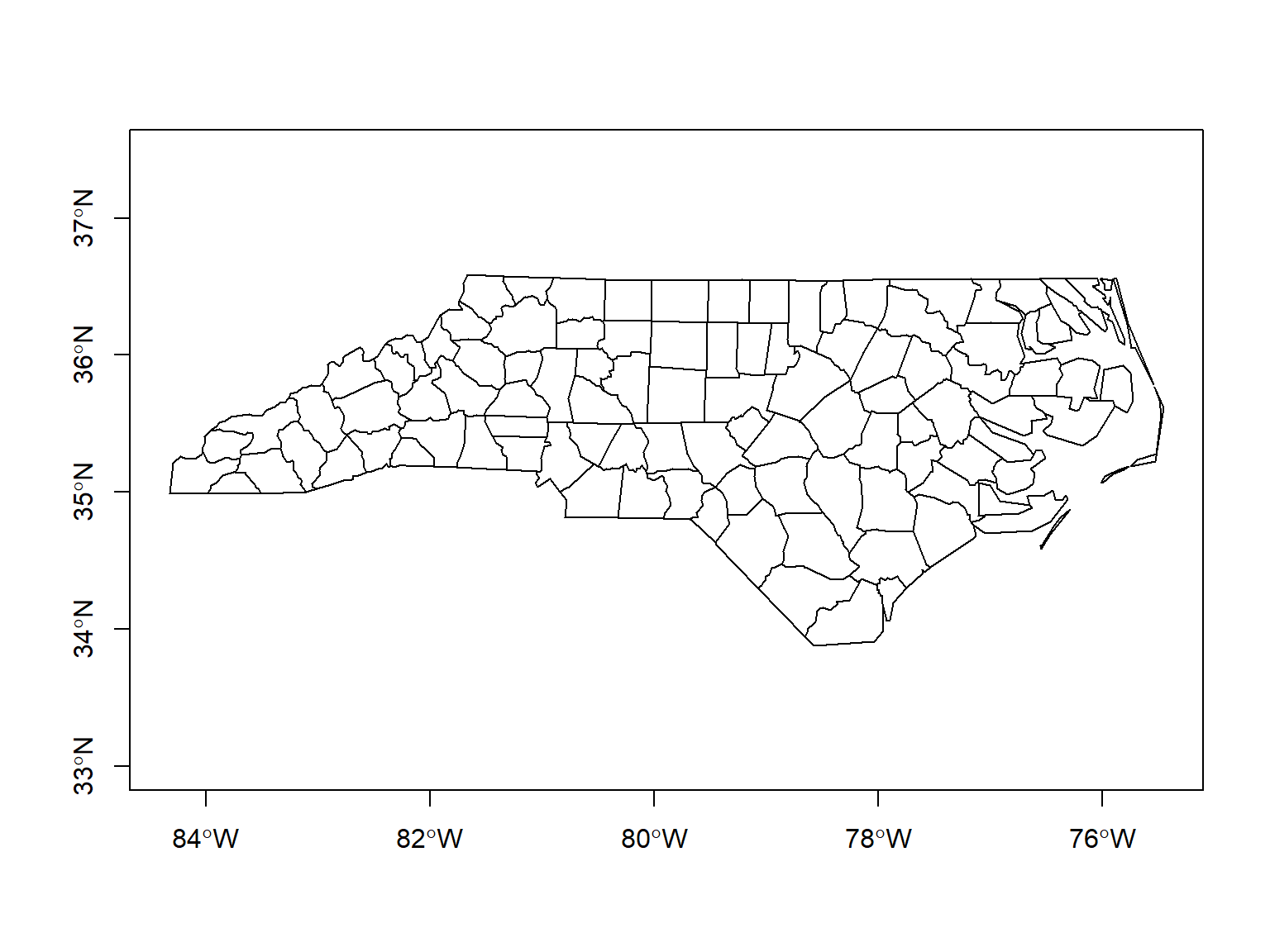
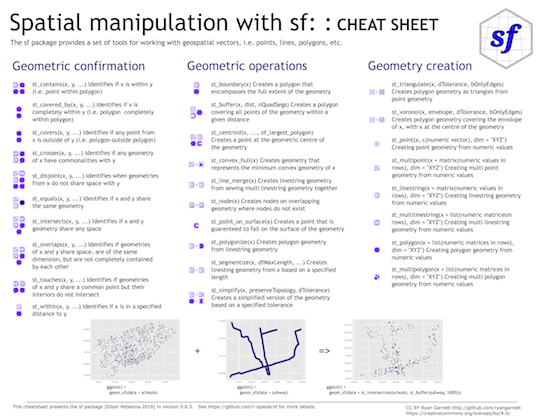
sf functionsst_)|> pipe friendly!
How do we squish a round planet onto flat maps / screens?
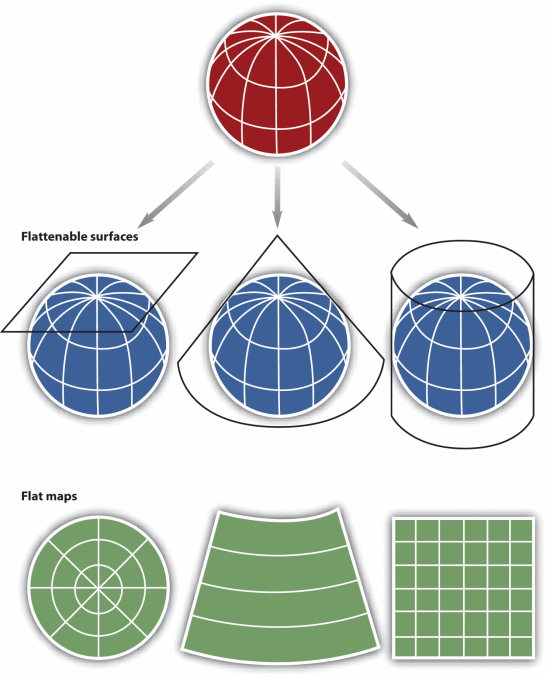
The more generic term for projections is ‘Coordinate Reference System’ (CRS).
CRS also includes ‘unprojected’ geographic coordinates (longitude & latitude).
There are 1,000s of CRS’s!
Each one has an EPSG number.
Projections are particularly important in R whenever you want to:
arcgislayers
arcgislayers
package (by Josiah Parry) provides an R interface to work with ArcGIS
services on ArcGIS.com and ArcGIS Portal using the API
Key functions include:
This is really useful, because:
Go to the “item details” page on ArcGIS.com for the layer you want.
Find the URL for the FeatureServer or MapServer.
Create a connection to the FeatureServer or MapServer (with
arc_open()).
Use get_layer() to create a connection to the
specific FeatureLayer you want to import.
Import the layer using arc_select(), providing an
attribute and/or spatial query expression if needed.
The layer comes into R as a simple feature (sf) object
library(sf)
library(arcgislayers)

## URL for a pubicly available Feature Server
counties_featsrv_url <- "https://services.arcgis.com/P3ePLMYs2RVChkJx/ArcGIS/rest/services/USA_Counties_Generalized_Boundaries/FeatureServer/"

## Create a FeatureServer object
counties_featsrv_fs <- arc_open(counties_featsrv_url)
counties_featsrv_fs
## <FeatureServer <1 layer, 0 tables>>
## CRS: 4326
## Capabilities: Query,Extract
## 0: USA Counties - Generalized (esriGeometryPolygon)## # A data frame: 1 × 9
## id name parentLayerId defaultVisibility subLayerIds minScale maxScale
## * <int> <chr> <int> <lgl> <lgl> <int> <int>
## 1 0 USA Count… -1 TRUE NA 0 0
## # ℹ 2 more variables: type <chr>, geometryType <chr>## Create a FeatureLayer object
counties_featsrv_fl <- arcgislayers::get_layer(counties_featsrv_fs, id = 0)
counties_featsrv_fl## <FeatureLayer>
## Name: USA Counties - Generalized
## Geometry Type: esriGeometryPolygon
## CRS: 4326
## Capabilities: Query,Extract## View the fields in the attribute table
## list_fields(counties_featsrv_fl) |> View()
## Import just the Florida Counties
fl_counties_sf <- arc_select(counties_featsrv_fl, where = "STATE_FIPS = '12'")
plot(fl_counties_sf$geometry, axes = TRUE)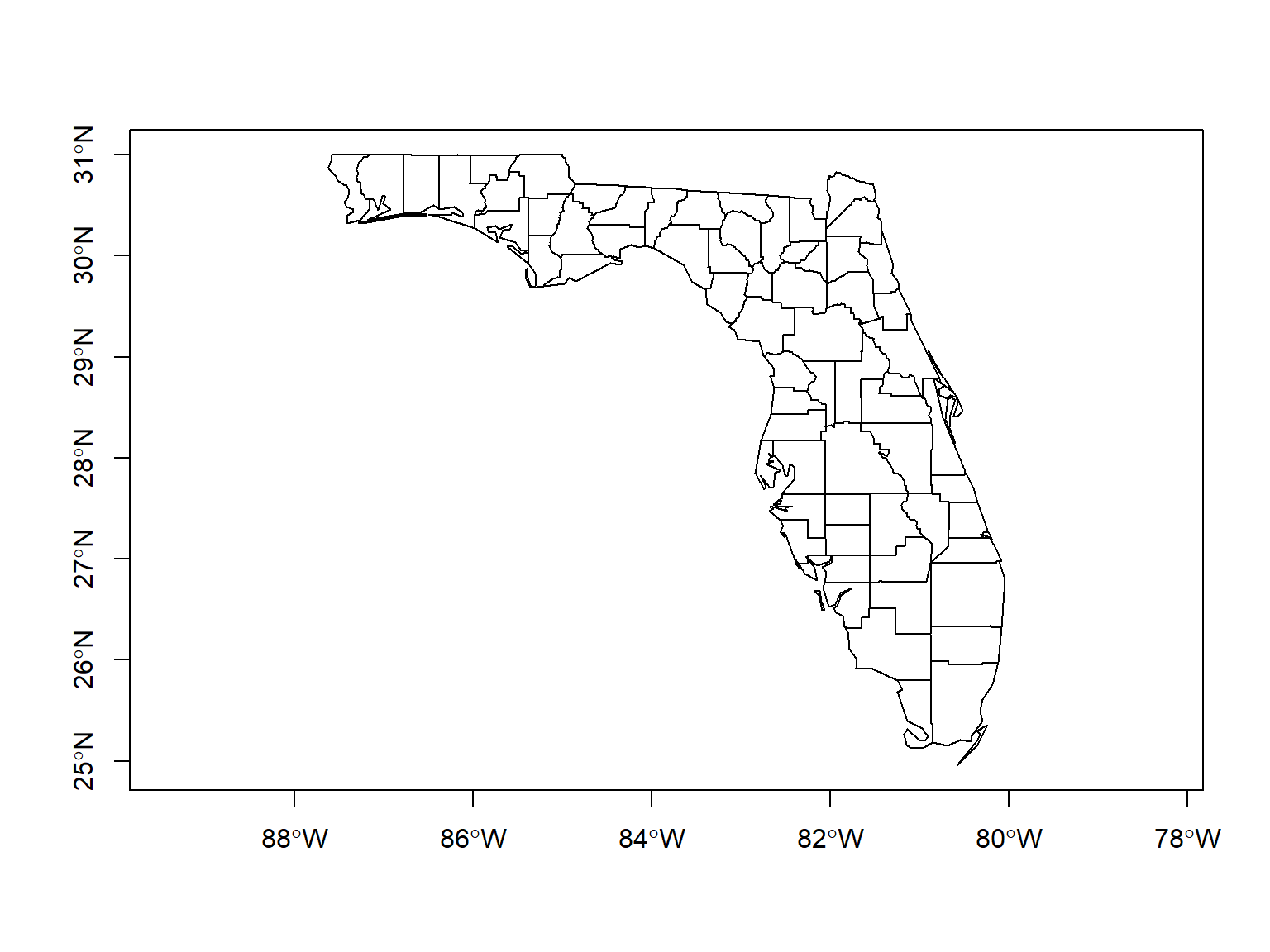
To import non-public data from ArcGIS online / portal, you need to authenticate by:
Create a Developer Auth Credentials (i.e., a service account) by logging into ArcGIS.com > Content > Add Content > New Developer Auth Credentials).
Feed your ‘client id’ and ‘client secret’ into
arcgisutils::auth_code() or
arcgisutils::auth_client() to generate a temporary
token.
Pass the token to arc_open(),
arc_select(), and other functions where needed.
Refresh the token when needed with
arcgisutils::refresh_token().
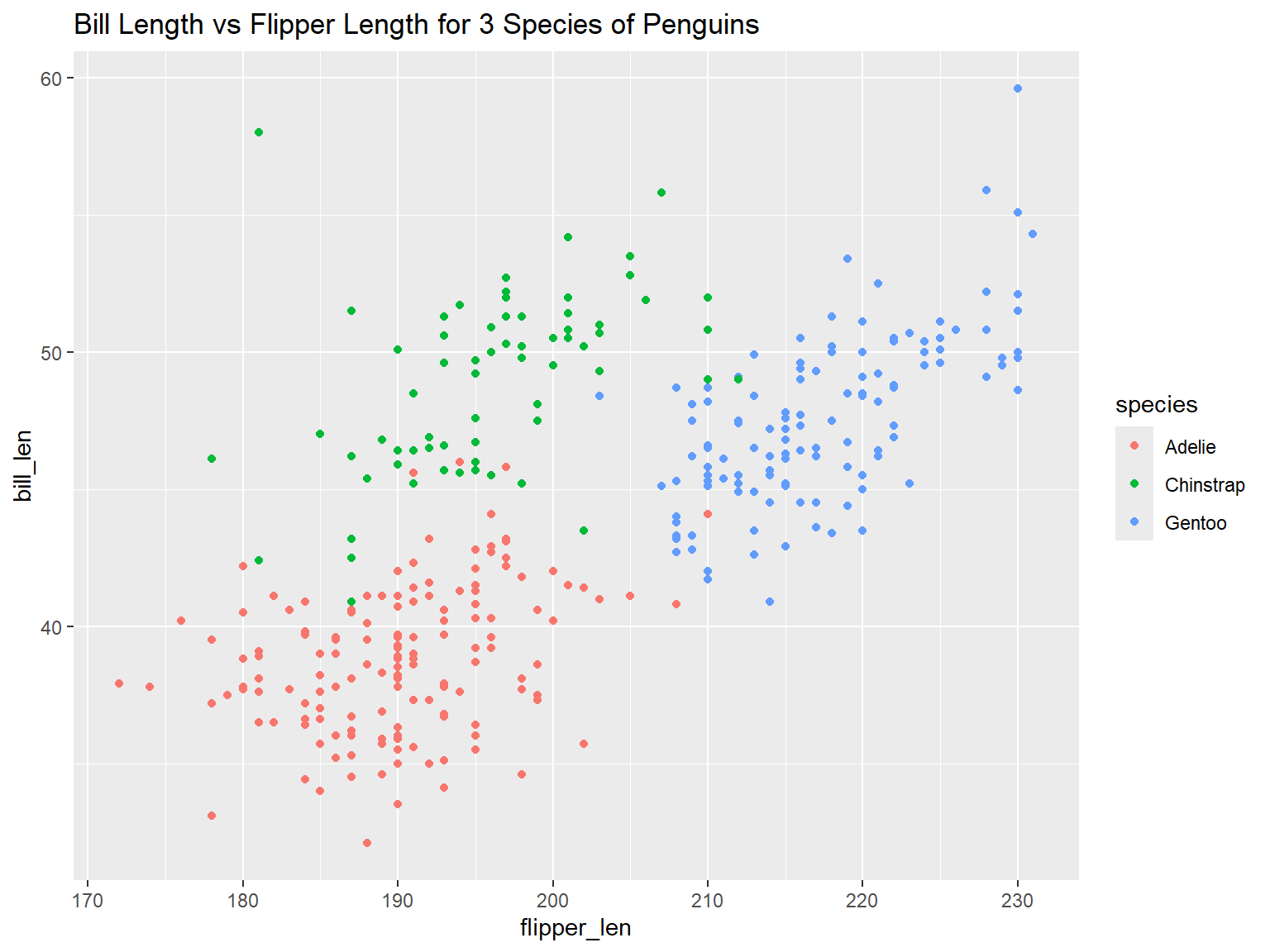
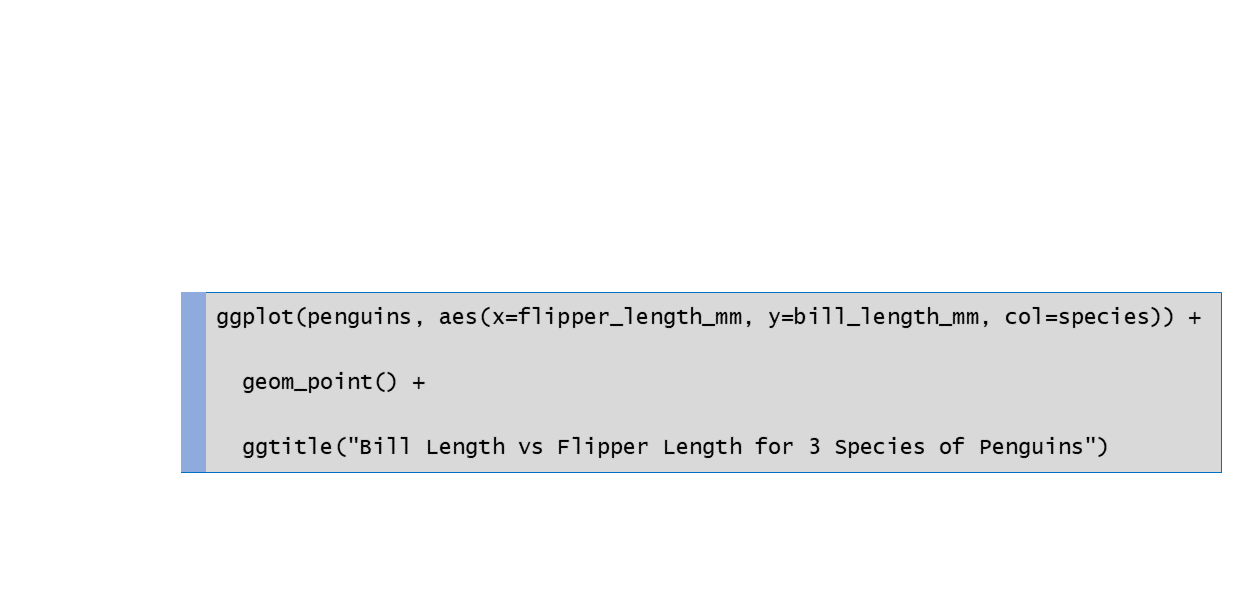
ggplots are constructed using the ‘grammar of graphics’ paradigm.
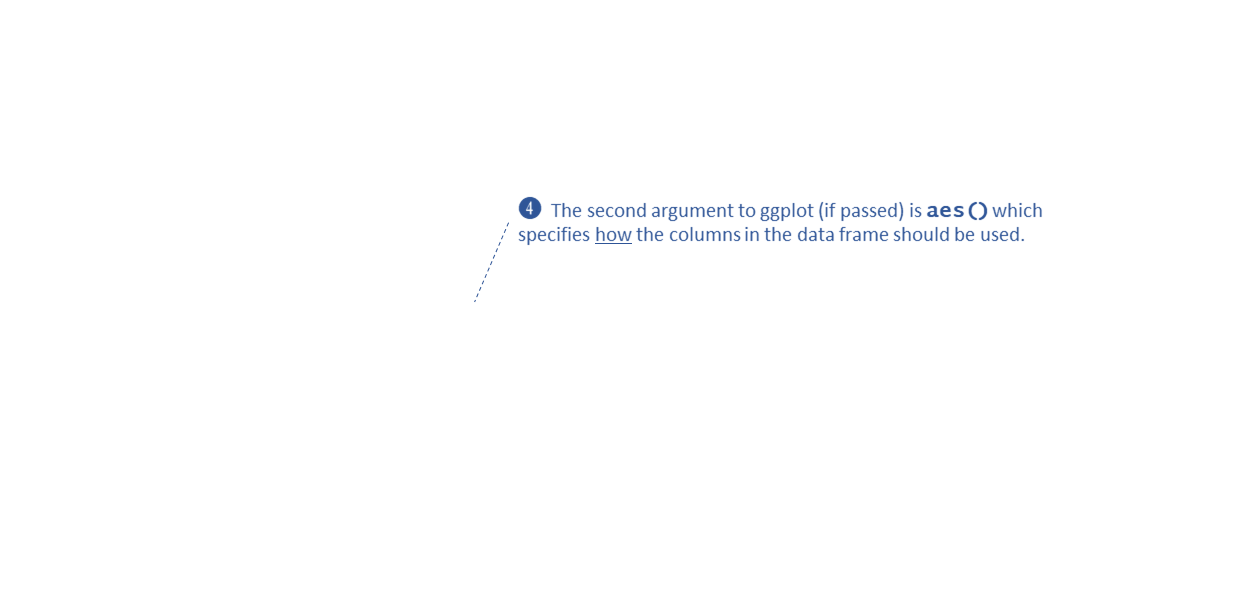
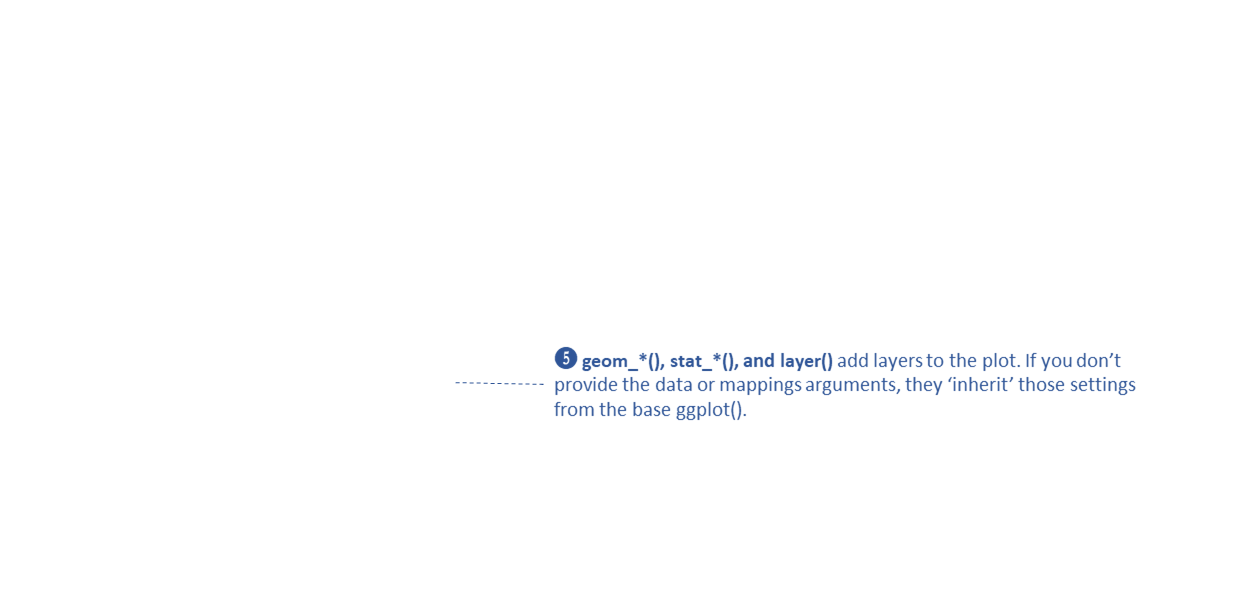
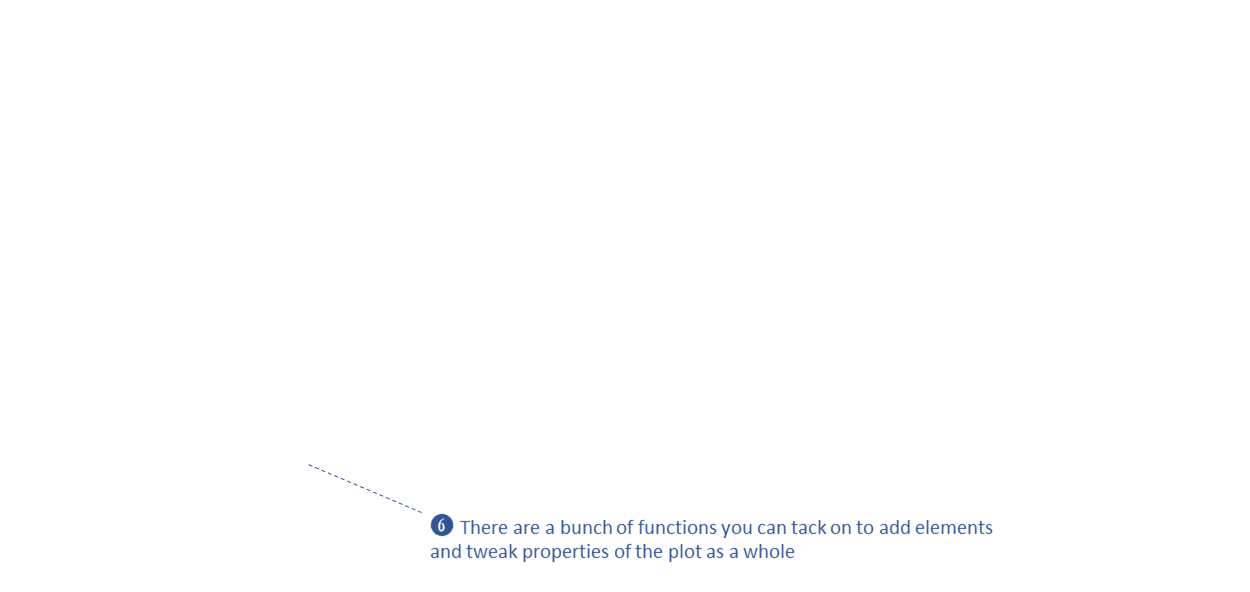
In the example below, note where geom_boxplot() gets its
visual properties:
aes()ggplot(penguins, aes(x = species, y = bill_len)) +
geom_boxplot(color = "navy", fill = "yellow", size = 1.5)## Warning: Removed 2 rows containing non-finite outside the scale range
## (`stat_boxplot()`).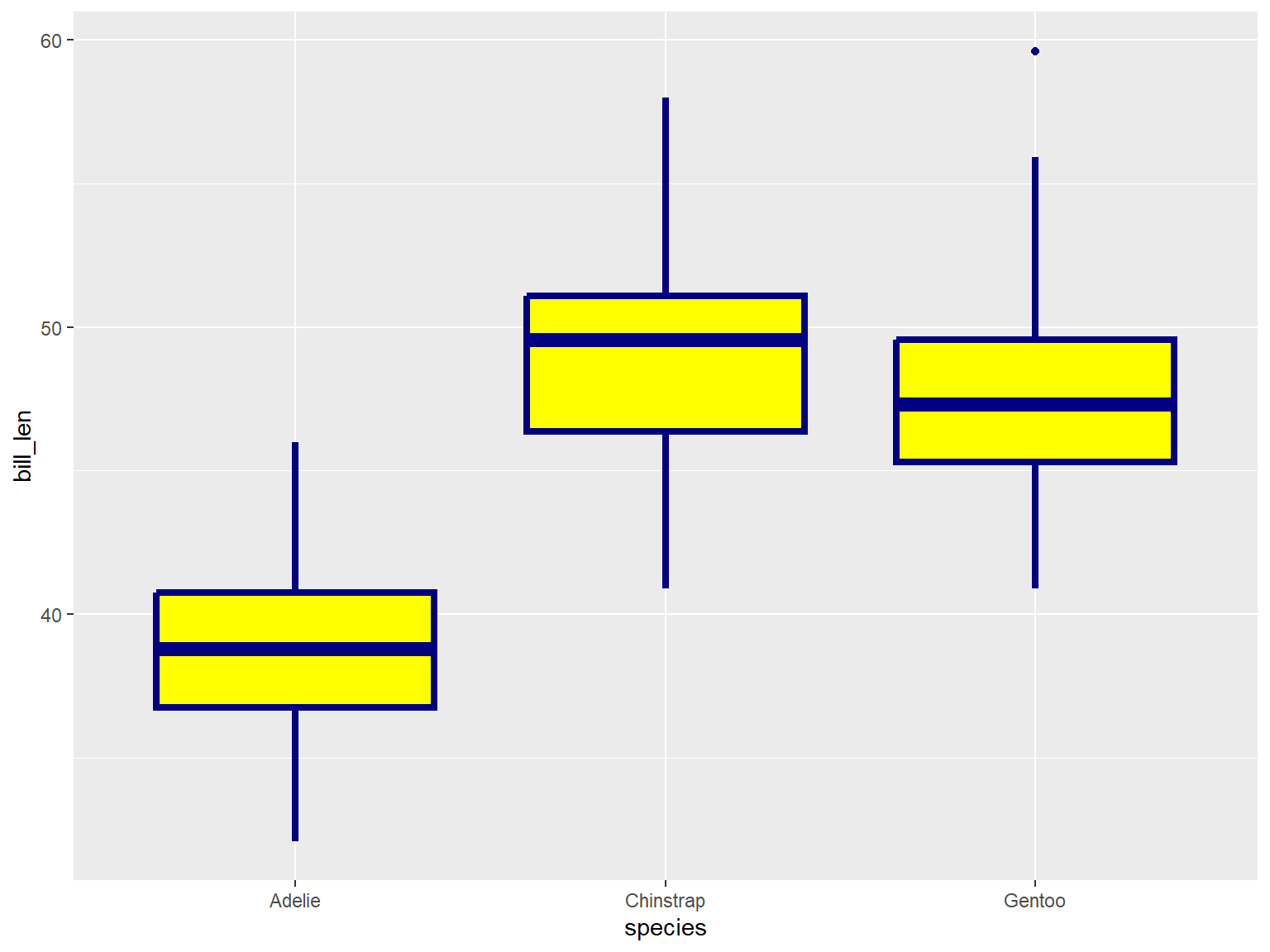
library(sf)
library(ggplot2)

nc <- st_read(system.file("shape/nc.shp", package="sf"), quiet = TRUE)

ggplot() +
  geom_sf(data = nc, aes(fill = BIR79)) +
  labs(title = "Live Births by County",
       subtitle = "1979-1984")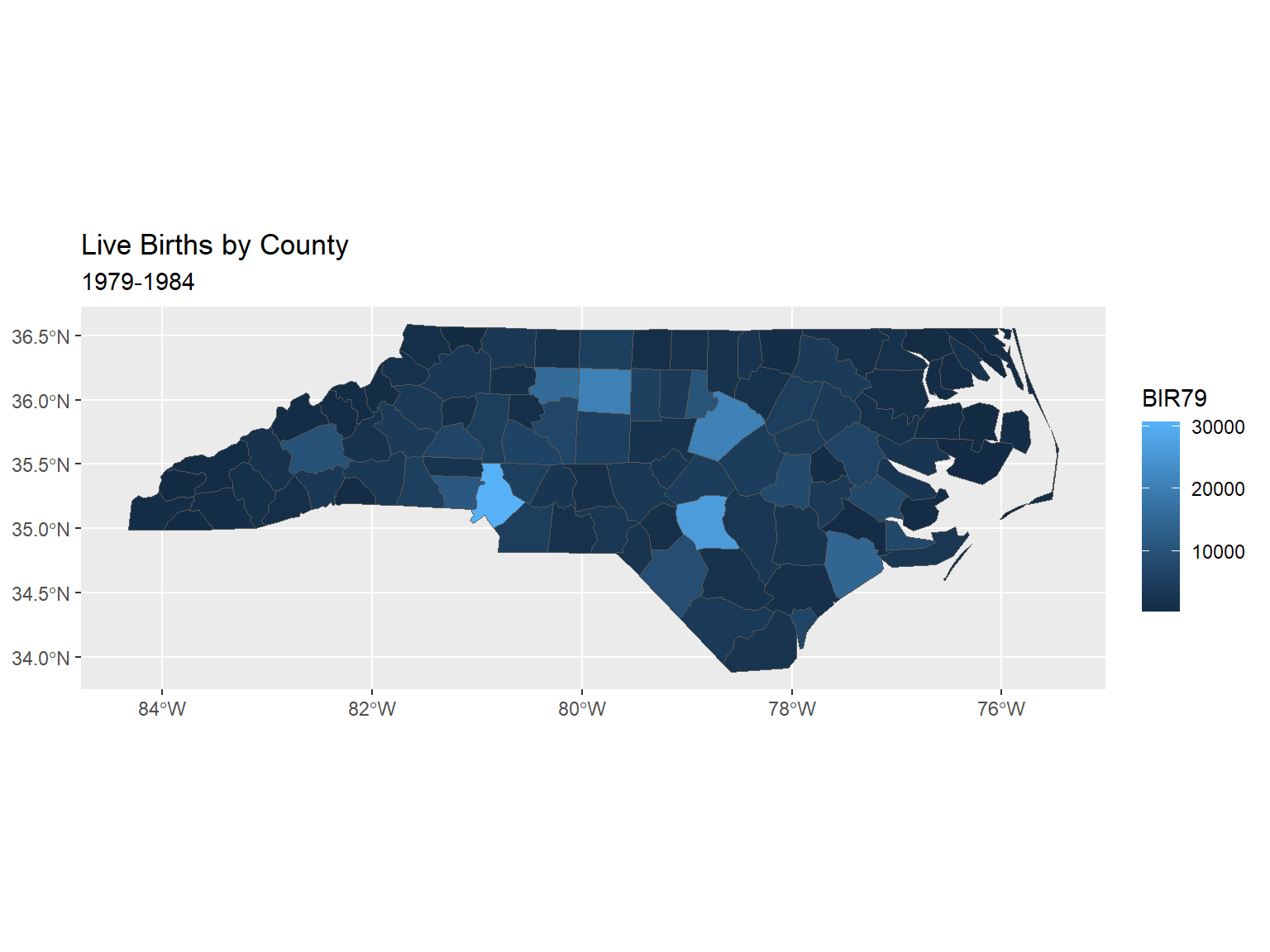
More info:
https://ggplot2-book.org/maps